
7
min read
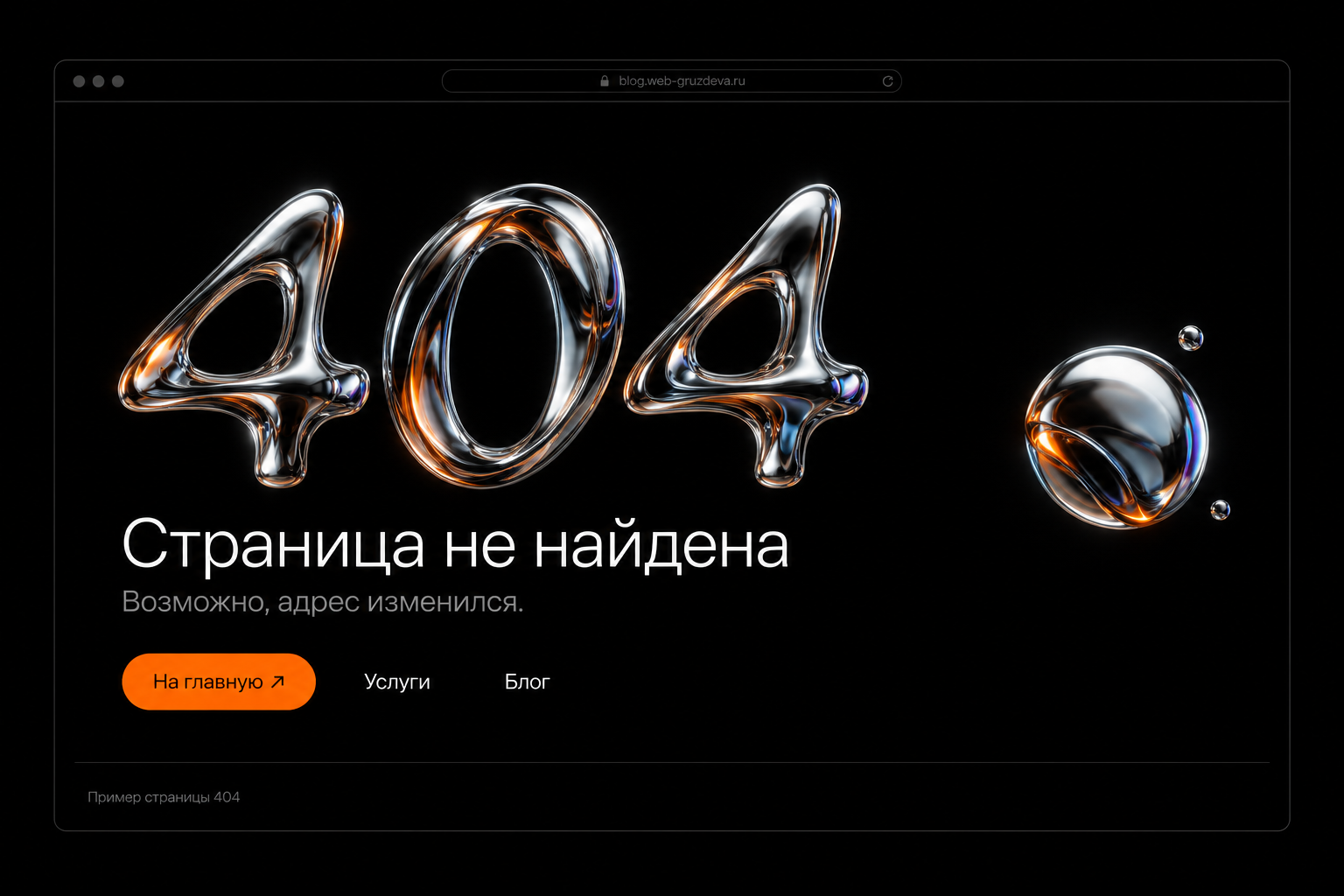
A visitor clicks a button, opens an article from search or follows a saved link, then sees “404: page not found”. Instead of useful information, they reach a dead end and may leave.
Find out why the URL stopped working. Sometimes one menu link needs correcting; elsewhere a page needs restoring or redirecting to its new address.
This article explains 404 errors, finding problem URLs with Tilda and Yandex.Webmaster, and deciding what to do with each one.
What “404: page not found” means
404 Not Found is a server response indicating that the requested page or resource could not be found. The website itself may work; the error relates to a specific URL.
An article might move from /blog/old-article to /blog/new-article. Old links without a redirect may take visitors to a 404 page.
Broken links and 404 errors are related but different. A link is a route; 404 is a response from a missing destination. Other availability problems can also break links without returning 404.
Why 404 errors appear
A page was deleted
An old service, promotion or article was removed, while links remain in menus, cards, posts, bookmarks or other websites.
The URL changed
Renaming a URL can leave the old address unavailable. Check internal links and route the old URL to the new location.
The link contains a typo
An extra character, missing letter or incorrectly copied path can lead to a nonexistent page from a button, text link or menu.
The website structure changed
A migration or restructuring may change many URLs. Without matching old addresses to new ones, existing links stop reaching the intended content.
How 404 errors affect visitors and SEO
The immediate problem is the visitor's interrupted task: reading, reviewing a service or enquiring.
Prioritise pages that should work, such as current services and useful articles. Their absence prevents users and crawlers from reaching content.
Deleted pages appearing in reports do not automatically reduce rankings for the whole site. The number of excluded pages in Yandex.Webmaster is not itself a ranking penalty. Check why each page is excluded and whether it should exist.
The practical priority is repairing routes to missing pages and restoring access to current content.
Two ways to find 404 errors
Tilda's broken-link checker and Yandex.Webmaster complement one another. The first checks website links; the second reports URLs crawled by Yandex.
Method 1: Tilda's broken-link checker
Open Site Settings → SEO → Broken Links.
- Enter a published page or website URL.
- Enable the whole-site option for a full check.
- Start the check.
- Review the links and error messages.
Use this after editing menus, deleting pages or changing URLs. It finds links still present in published content.
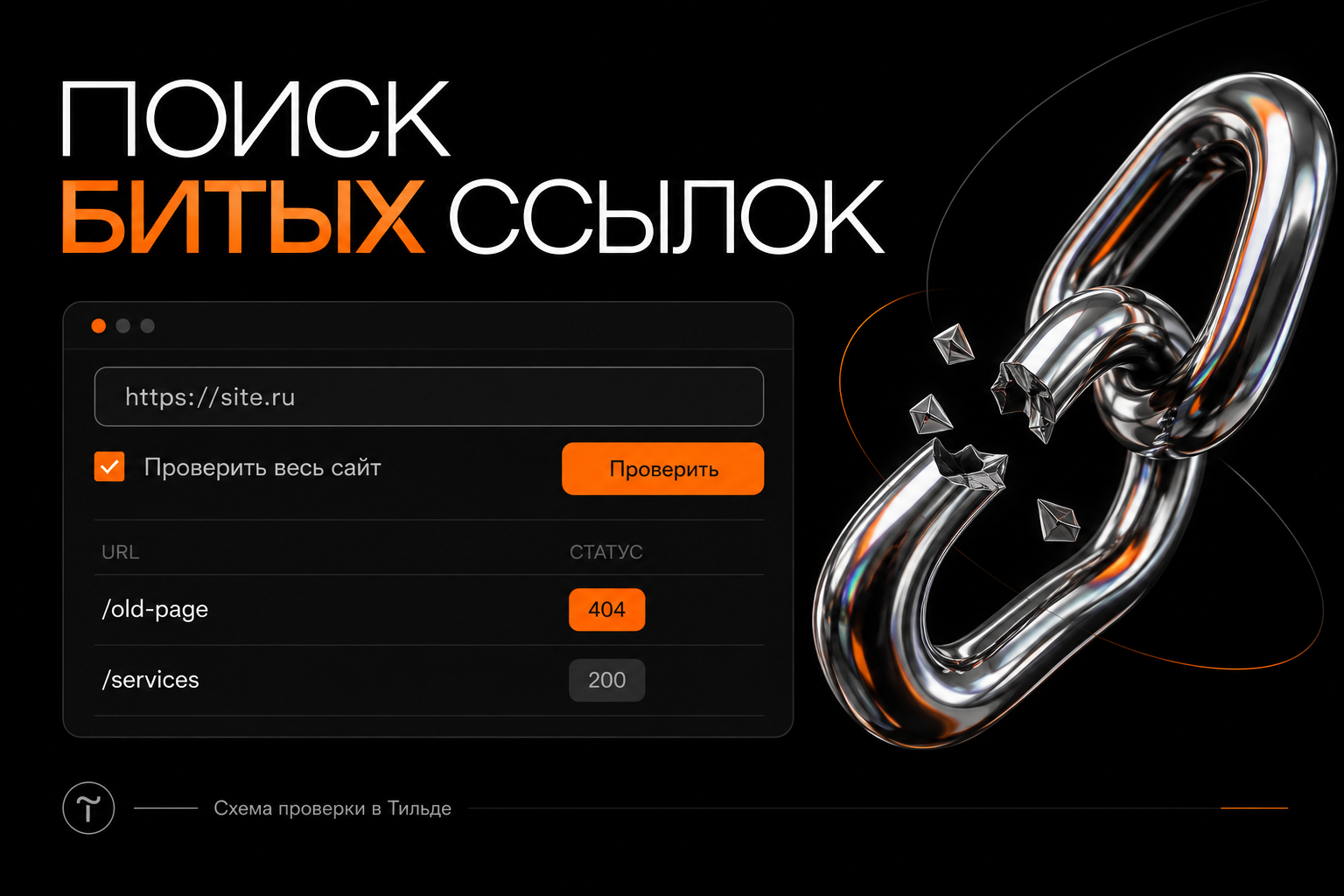
Open reported links manually before making changes. Find them in the editor's buttons, menus and text, correct or remove them, then republish affected pages.
Method 2: 404 responses in Yandex.Webmaster
If necessary, add the website to Yandex.Webmaster and verify ownership.
- Select the website.
- Open Indexing → Crawl statistics.
- Filter server responses by 404.
- Review URLs and crawl dates.
- Identify pages that should remain available.
This reports crawled URLs and their server responses, including old addresses no longer linked in current menus. It is historical crawl data, not a live check of every URL.
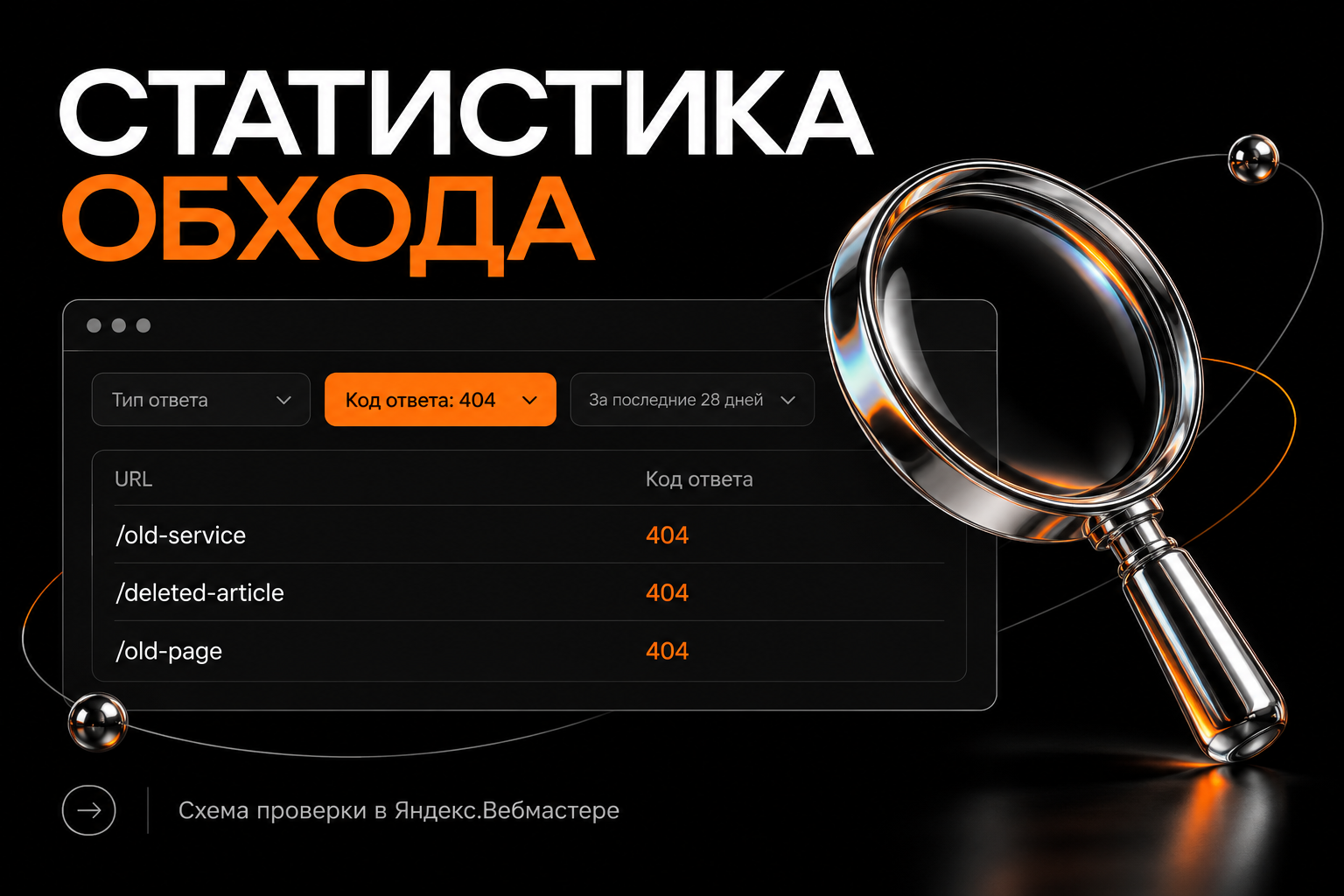
Use Yandex.Webmaster's server response checker to check a page now. Request recrawling after restoring an important page.
Fixing 404 errors on Tilda
Choose a remedy based on what happened.
Incorrect link: correct the URL
If the destination works but a button or menu points elsewhere, update the URL, check every occurrence and publish. Test from the public website afterwards.
Accidental deletion: restore the page
If visitors still need the content, restore it, preferably at the old URL. Confirm publication and incoming links.
A new address: configure a 301 redirect
A 301 indicates a permanent move and sends visitors to the new URL. Configure it under Site Settings → SEO → 301 Redirects, for example /old-service → /new-service.
Choose a destination matching the former content. Tilda's 301 rules operate from nonexistent pages within the same domain.
Permanent removal: keep a correct 404 response
Not every old URL needs a substitute. If content is no longer useful and has no suitable replacement, 404 is appropriate. Remove current links to it.
Do not automatically redirect every old URL home. Visitors need a meaningful next step relevant to their request.
Designing a useful 404 page
Even after checking links, visitors may mistype an address or use an old bookmark. A 404 page should help them continue.
- A clear “Page not found” heading.
- A brief explanation.
- A home button.
- Links to main services or sections.
- A way to contact you for help.
Example: “We couldn't find this page. Its address may have changed, or the link may contain a typo. Go to the homepage or choose a section.”
Create and publish a separate Tilda page, then select it under Site Settings → More → 404 Page. Save and publish all website pages. Do not give the page the exact /404 address, which displays the platform's default error.
Reducing broken links
Before deletion, check incoming links. When moving content, update internal links immediately and configure a redirect.
Run Tilda's check after changing menus, services or structure. Review Yandex.Webmaster crawl statistics regularly, especially after migration or bulk URL changes.
Preserve working routes to needed content: restore current pages, correct incorrect links and connect moved content to its new URL.
Frequently asked questions
Must every 404 URL be fixed?
Review each one, but use different remedies. Restore active pages, redirect moved pages and retain 404 for permanently removed content without a replacement.
Why does Yandex.Webmaster still show the error after a fix?
Reports reflect crawl-time responses. Until the crawler revisits, old information may remain. Check the current response and allow reports to update.
Does an attractive 404 page fix broken links?
It helps visitors continue but does not repair the source link. Correct erroneous URLs in buttons, menus and text.